 Anwar & Azzouz
🎮 Getting started
- On the home page (or in the Play Store app) choose your child's grade, then the subject: Arabic, Social Studies, Maths, Science or English.
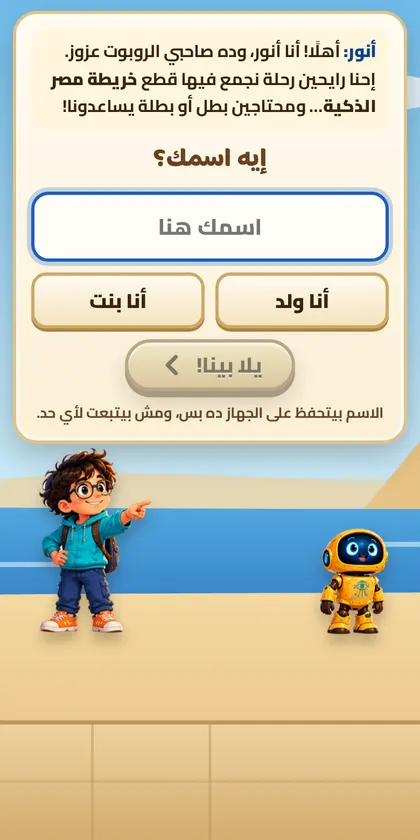
- Tap «ابدأ المغامرة» (Start the adventure), type your child's name and choose boy or girl. Anwar and Azzouz call your child by name all the way.
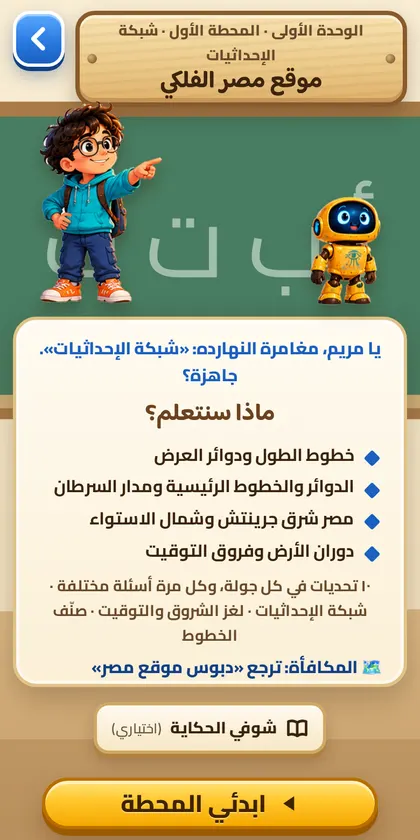
- Lessons sit on a map in the book's order. Each round is 10 questions in different mini-games, all taken from the Ministry book for Term 1.
- 8 out of 10 or more wins a piece of the treasure (a key or a map). When all pieces are collected, the final challenge opens — pass it and your child gets a certificate with their name.
- Stuck on a rule? The blue «اعرفها إزاي؟ 🕵️» button explains the book's rule step by step without giving the answer.
📲 Save & move progress to another phone
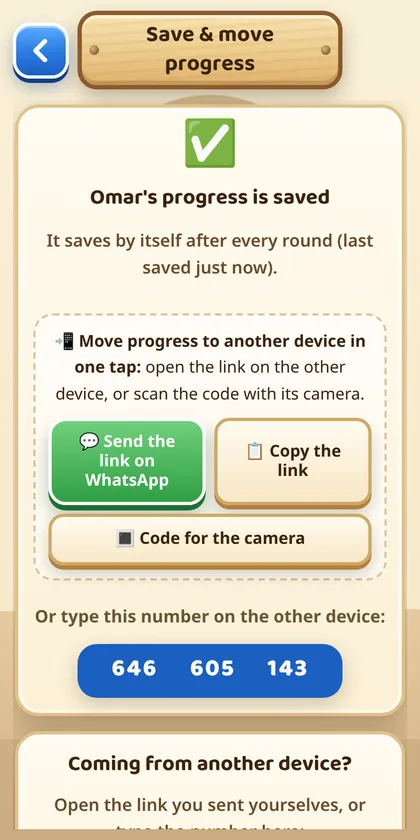
There is no login. Progress is saved on the device. To never lose it — and to continue on another phone or tablet — it takes one tap.
Save it (once)
- In the game open Settings ⚙️ → «📲 Save & move progress» (or tap «💾 احفظ تقدّمي» on the game's home screen).
- Tap «✨ Save progress». That's it — from now on it saves by itself after every round.
Move it to another device
- On the same screen tap «💬 Send the link on WhatsApp» (send it to yourself) — or show the camera code to the other phone.
- Open the link on the other phone. The game asks «Bring the progress to this device?» — tap Yes. Name, stars and pieces are back.
- No link? Type the 9-digit number in «Coming from another device?» on the same screen.
📱 Put the game on your phone
Android
- Get Anwar & Azzouz from Google Play, or open your grade's game in Chrome.
- In Chrome tap ⋮ → «Install app» (or «Add to Home screen»). Progress you already have in Chrome stays.
iPhone / iPad
- Open your grade's game in Safari.
- ⚠️ First: in the install steps («📲 ثبّت اللعبة على الموبايل») tap «📋 Copy progress». iPhone opens home-screen icons without Safari's progress.
- Tap Share ⬆️ → «Add to Home Screen» → Add.
- Open the new icon and tap «📋 Paste progress» — your child's progress comes back.
🔓 Joined mid-term? Unlock all lessons
Lessons open one after the other. If your child starts in the middle of the term, tap any locked lesson and choose «🔓 افتح كل الدروس» (Unlock all lessons) — or use Settings → «Unlock all lessons». Your child can then play any lesson in any order. You can lock them again from Settings.
👧👦 Several children on one device
Each child has their own name, stars and progress. Go to Settings → «Children on this device» to switch child, add a new child («+ New child»), or add a child who already has progress («Add a child with their PIN»).
⚙️ Settings & progress report
- 🌐 عربي | English at the top of Settings switches all the parents' screens to English.
- Progress report: lessons played, best results, skill levels, and the topics that need review.
- Sound effects, music, less motion, bigger text, friends' challenge on/off, games corner on/off, anonymous statistics on/off.
- Send us your feedback, or report a question with «🚩 في غلط في السؤال ده؟» under any question — we read every message.
🏆 Friends' challenge & games corner
- Friends' challenge: your child makes a 5-digit code for 10, 20 or 30 questions from chosen lessons; friends type the code and play the same questions, then see the ranking. Challenges are deleted after 7 days.
- Games corner: chess, Seega, the Nile journey, bowling, archery, the adventure runner and more — against Azzouz or friends, with a lesson question before every turn. Friends can join with a 6-digit code.
🔒 Privacy
- No login, no email, no phone number. No ads inside the games.
- Your child's name and progress stay on the device — unless you choose «Save progress», which keeps only the name, stars and pieces online.
- Anonymous statistics (lessons played, right/wrong answers per question, device type, country) help us improve the games; you can turn them off in Settings.
- Full policy: Privacy policy (English below the Arabic).
❓ Questions parents ask
Are the games free?
Yes. All games are free, with no sign-up, and there are no ads inside the games.
Are the questions from the school book?
Yes. Every question comes from the Ministry of Education book for Term 1 of that grade.
My child's progress disappeared on iPhone after adding the icon.
iPhone keeps home-screen icons separate from Safari. If you saved progress before (Settings → «📲 Save & move progress»), open the saved link, or tap «📋 Paste progress» in the icon after copying it in Safari.
We started mid-term — how do we reach this week's lesson?
Tap any locked lesson and choose «🔓 افتح كل الدروس» (Unlock all lessons).
Does it work without internet?
Yes, after opening it once with internet and leaving it for a minute.